> For the complete documentation index, see [llms.txt](https://docs.on.nexus/llms.txt). Markdown versions of documentation pages are available by appending `.md` to page URLs; this page is available as [Markdown](https://docs.on.nexus/hodifi/developers/deployment-guide/server-firewall.md).
# Server Firewall
#### **Stage 1: Temporary Access for Initial Deployment**
**Purpose:**
To log in to the server and execute initial installation commands.
**Action:**
* In your cloud provider's firewall settings (e.g., AWS Security Group), add an inbound rule to allow SSH (TCP port 22) traffic from **your current public IP address**.
* **Security Tip:** This rule is temporary. Do not open the SSH port to all IPs (`0.0.0.0/0`), as this poses a significant security risk.
#### **Stage 2: Configure Core Node Communication Port (28610)**
**Purpose:**
To allow your node to interact with the HodiFi network and to allow you to access the management dashboard.
**Action:**
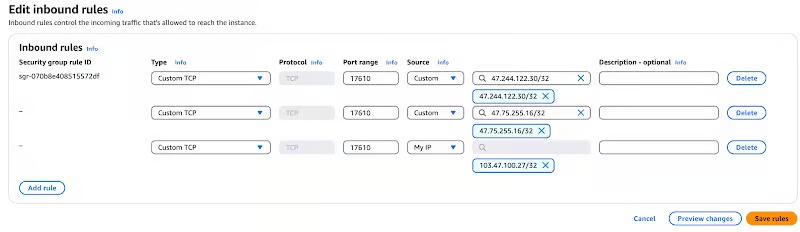
You need to add an inbound rule to allow TCP traffic to port `28610` from the following sources:
* **Source 1 (Protocol Communication):** `47.75.255.16/32` and `47.244.122.30/32`. These are the addresses for HodiFi's core relay network. Your node must be able to receive instructions from these addresses to function correctly.
* **Source 2 (Personal Management):**`Your current public IP address`.This IP will be allowed to access port 28610 on your server`http://:28610`from your personal network.
#### **Stage 3: Security Hardening (After Successful Deployment)**
**Purpose:**
To remove unnecessary public entry points and significantly enhance server security.
**Action:**
After you have confirmed that your node is deployed and running stably, you **must perform the following critical step**:
* **Remove SSH Access Rule:** Return to your firewall settings and **delete or disable** the rule allowing SSH (port 22) access that you created in Stage 1.
* **How to manage the server after closing SSH?** You will no longer connect via public SSH. Instead, you should **rely exclusively on the secure, in-browser management tools provided by your cloud provider** (e.g., AWS Session Manager, Linode Lish Console), which is the industry-recommended best practice.
.png?alt=media)
.png?alt=media)